Every time you save an image, you choose between two ways to minimize file size. Understanding the main difference between lossless and lossy compression will help you choose the right image file format.
Compress images in your browser — no uploads →
The core difference
A lossless compression method rearranges your image data to use less space. But all of the information is still there — after you uncompress the image, you will have an exact copy of the original. Many different lossless image compression methods exist. In essence, they just create a more organized and efficient filing system for your images.
With lossy compression, your image is permanently changed. The encoder discards the information that the image would contain if it were larger, such as excess data that your eye wouldn't be able to see anyway. This data can never be recovered, so the resulting image is always smaller than the original.
Both methods reduce file size, but they differ significantly in whether the original file can be reconstructed.
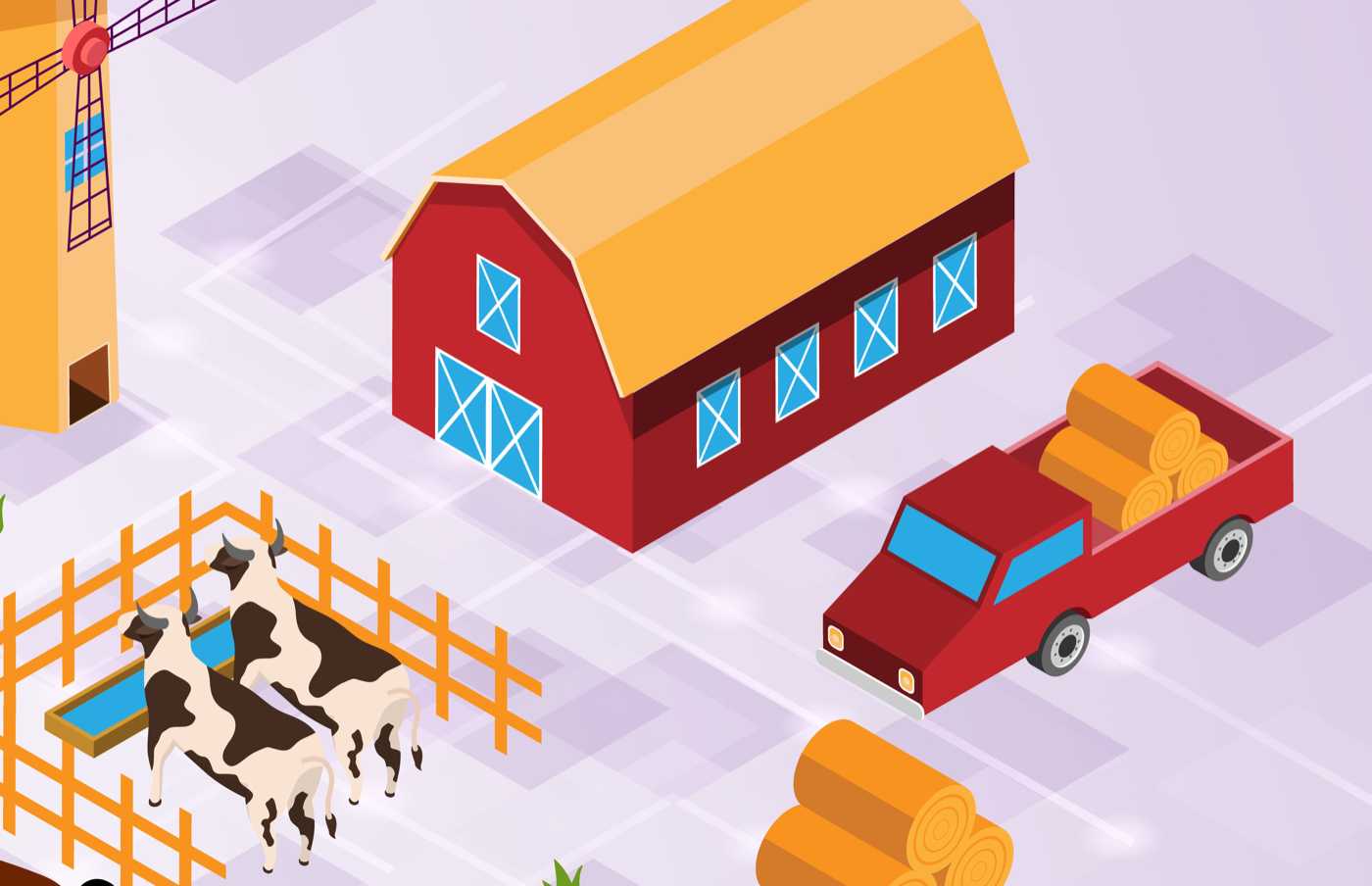 JPG lossy q50 · 70 KB
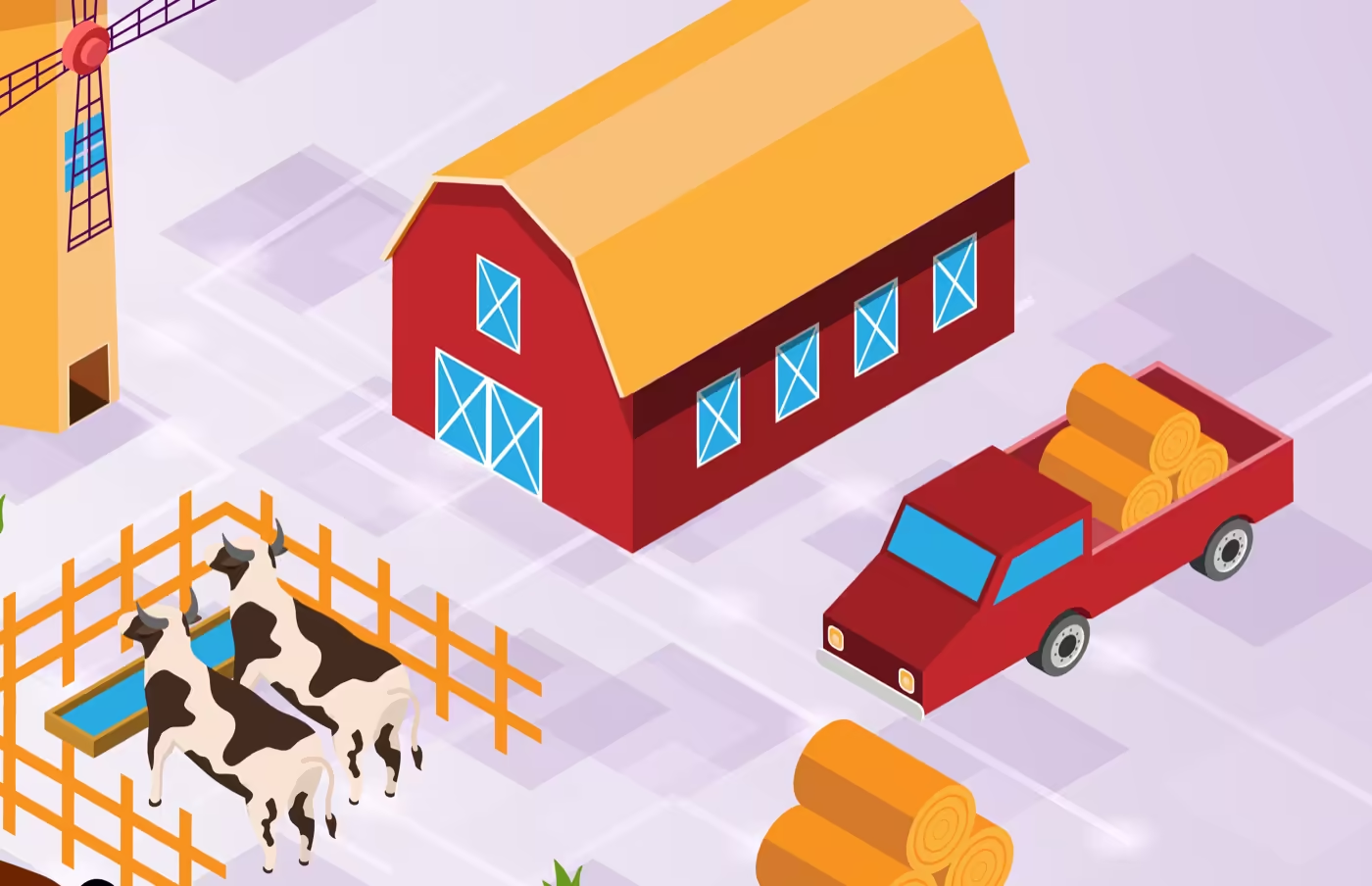 AVIF lossless · 21 KB (−70%)
Both files are compressed at 50% quality, but the end result is the lossless version is more than three times smaller than the lossy.
Which formats use which
| Format | Compression type | Notes |
|---|---|---|
| PNG | Lossless | Always lossless — compression level affects speed, not quality |
| GIF | Lossless | Limited to 256 colors |
| JPEG | Lossy | Quality slider controls how much data is discarded |
| WebP | Both | Lossy by default; lossless mode available |
| AVIF | Both | Lossy by default; lossless mode available |
| TIFF | Both | Commonly stored uncompressed or lossless (LZW) |
| BMP | None (or lossless) | Typically uncompressed |
So how does lossy compression decide what to discard?
Lossy compression works by using well-established techniques to reduce the amount of data needed to store an image; JPEG, WebP, and AVIF all use them. They use:
-
Color information has lower sensitivity than brightness information. Our eyes are more sensitive to changes in brightness than to slight changes in color. This is why encoders set the precision of color information lower than that of brightness information.
-
High-frequency detail in textured areas. In image parts with a lot of texture (like a grassy hill or a woven carpet), the image's fine grains and sand are all considered high-frequency. Lossy encoders store this type of image data at a lower bit depth than other parts of the image.
-
Smooth areas are perceived more accurately. Lossy artifacts in smooth regions, such as solid-color backgrounds (banding, color shifts), are generally more visible than in corresponding textured areas.
The quality slider (often found in export tools) lets you control how much data of each kind is discarded to reach the desired file size.
When lossless compression is the right choice
Use lossless when:
Working with your images as long as you need to. Re-importing and re-saving your images in a lossy format many times only reduces their quality a little each time, but the cumulative effect of these small reductions adds up quickly. In contrast, storing your files in a lossless format does not affect their quality.
The image contains text. JPEG- and WebP-encoded images at typical quality settings will contain artifacts around sharp edges such as text. Screenshots, UI mockups, charts, and graphs with text look much better when saved as PNG-encoded images.
Pixel-perfect is key. Lossless images are required for medical images, satellite images, and technical illustrations where measurements are critical and inaccurate representations could cause serious problems.
You are archiving master images. Store originals as PNG or TIFF files. Later on, you can then create compressed versions for distribution as required.
When lossy compression is the right choice
Use lossy for:
Photographs for web delivery. For photographs you intend to use on a website (e.g., as product photos, blog post images, etc.), the image quality is typically perceived to be the same as when saving as a PNG at 80% quality (and thus 3–8 times the file size). For these images, the smaller file size from JPEG/WebP is usually an advantage, since it reduces website load time.
An image that will not be edited any further. A compressed image that won't be altered is perfectly OK for display purposes.
Mobile or other low bandwidth contexts. For use on the Web as part of a long page or for users on slow mobile data connections, smaller files load faster on such systems.
The quality threshold: where lossy becomes invisible
Typical compression quality settings (e.g., JPEG quality 80, WebP quality 80, AVIF quality 65) produce images that look identical to the lossless original when viewed side by side on a high-resolution screen.
Quality settings below 70 are typically where you start to notice obvious signs of compression. Typical artifacts include the blocky structure of the compressed image and color banding.
For displaying images on the web, we recommend lossy compression at a quality level of 80, while all master images, editables, text, and other images requiring fine detail should be saved in lossless compression.
Converting between lossless and lossy
Converting from lossless to lossy (e.g., PNG to WebP). This is similar to encoding from the original pixel data of an image. The quality of the encoded image is determined solely by the quality setting you choose for the encoding process (e.g., PNG to WebP, JPEG to WebP, etc.).
Re-encoding from already lossy encoded images. When re-encoding from already lossy encoded images (e.g., from JPEG to WebP), some quality loss is inevitable, but with a quality setting of 80, this loss is not visible. Never repeatedly re-encode lossy images, as each round trip of re-encoding adds to the previously existing artifacts from the earlier compression.
Converting from lossy to lossless (e.g., JPEG to PNG). When you convert from a lossy image to a lossless image, the resulting image contains all the data from the original lossy image — even the annoying compression artifacts. The only change is that the image is stored in a much larger file, and the artifacts are stored losslessly.