If you've ever tried "converting" 200 photos one at a time, you know the problem. Most tools or software are built to process one image at a time. Even "free" batch online conversion tools are really freemium, meaning they allow you to convert a limited number of images, then prompt you to sign up or pay a monthly fee to continue using their service. True batch conversion, meaning processing hundreds to a thousand images in one go, requires either desktop software, command-line tools, or a browser tool to handle it.
This guide will enumerate the different batch conversion options on your computer, from installing software to converting it in your browser.
Batch convert images in your browser — no uploads →
Why batch conversion matters
The time it takes to convert one image manually is a tiny fraction of the time it takes to convert 500 images. Let's say, for example, that converting one image takes 15 seconds for uploading and setting up, and 15 seconds for downloading and renaming, for a total of 30 seconds per image, or 125 minutes for 500 images (over two hours). Converting images in batch mode takes the same 2 minutes for any number of files. You simply upload all the files, click Convert, and then download a ZIP file with all of your converted images.
This matters for:
- Product photography: Convert your catalog images from RAW/TIFF to web-optimized WebP or JPG.
- Photo archiving: Converting thousands of HEIC photos from iPhone to universally readable JPG files.
- Web optimization: Converting a folder full of uploaded images to reduce the page load time of a website.
- Format migration: Converting between formats like BMP to PNG or AVIF to JPG.
- Exam applications: Resize and crop hundreds of images, such as passport photos, to exactly fit the required dimensions for online applications.
The three approaches to batch conversion
1. Desktop software
You can convert large volumes of images with tools like Adobe Lightroom or GIMP's Script-Fu batch mode. Also, there are dedicated programs for batch image conversion, like XnConvert. Large amounts of images, no file size limits. Offline, but sometimes overkill, when you only want to convert a folder full of images once.
2. Command-line tools
ImageMagick and libvips are the standard way to do batch conversion of images on the command line. And with just a few keystrokes, you can convert an entire directory full of files.
for f in *.jpg; do convert "$f" "${f%.jpg}.webp"; done
There is considerable power in these approaches, and they are easily scriptable, but can be quite complex to use.
3. Browser tools
New browser tools based on WebAssembly run the same original code (as libvips or ffmpeg) inside your browser tab. You can run batch conversion of images without installing anything, without uploading files, without creating an account. Your local CPU runs the conversion, and the browser merely serves as a front end.
The only thing limiting a browser-based batch conversion of huge numbers of images (e.g., 5,000 high-resolution images or more) is the memory of your browser. To handle such huge amounts of data, the conversion has to be split into several batches. For such huge amounts of data, though, typical use cases are in the order of hundreds of images only.
How to batch convert images in your browser
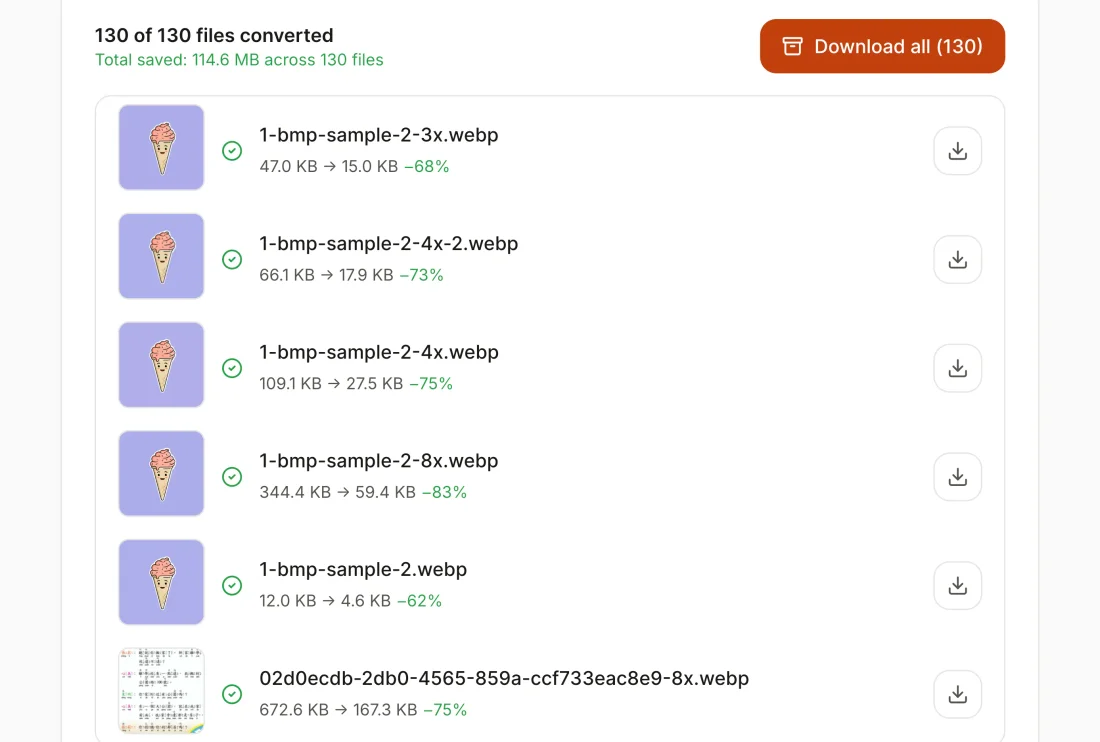
ConvertYard's image processing is done in the browser, and no images are uploaded to servers for processing.
Step 1: Choose your tool
Pick the tool for your conversion type:
- Convert between formats: (jpg to webp, heic to jpg, png to avif, etc.) Use the format-specific tool.
- Compression: Shrink JPG/PNG/WebP files to a certain quality — use Image Compressor.
- Resize: Same settings for all files. Settings for resize are entered once for all files in batch. Image Resizer.
Step 2: Drop all your files
To upload images to ConvertYard for processing, simply drag and drop an entire folder onto the screen or click inside the rectangle to select individual files. All tools handle 1,000+ files as a single batch and give a file-by-file status update as they are processed.
Step 3: Set your settings once
Set quality, dimensions, output format, etc. before you convert, and those same settings will apply to all files.
Step 4: Download the ZIP
When ConvertYard has finished processing your files, download a ZIP archive containing all your converted files. File names are retained and now have the appropriate file extension for the converted file.
Choosing the right output format for batch conversion
The format to which you are converting your files is important to consider when determining how best to process a batch of files.
| Use case | Recommended format |
|---|---|
| Web images (photos) | WebP (quality 80) or AVIF (quality 70) |
| Print / archival | PNG (lossless) or TIFF |
| Maximum compatibility | JPG (quality 85) |
| Transparent backgrounds | PNG or WebP lossless |
| iPhone photos for general use | JPG (quality 90) |
When it comes to web images like these, WebP at 80 quality will typically shrink files to 25–35% of the size of similar quality JPEGs. AVIF will even reduce file size by another 10–20%, but that will come at the cost of more time spent encoding the image. For small web pages made of 500 images or so, 80 quality WebP will likely be the sweet spot for image size.
Tips for large batches
Test conversion first with 5 files. Convert a small batch of 1,000 photos first to verify the settings will produce what you need. And then you can fine-tune as needed before processing the rest.
Your originals will not be harmed; the converted files are new, and you should keep the originals until you verify the converted files.
Large batches. If you have 3,000 high-resolution RAW conversions to make in the browser, then it's better to split them into 2–3 sessions rather than try to cram them all into one tab and run into browser memory limits. 500–1,000 files per session is about the limit on most modern laptops.
Don't rename files after conversion. If you need specific file names in the output (as opposed to the original file name), rename your source files before running the batch conversion. ConvertYard will then use the renamed original file name and change the extension to that of the converted file.