One of the most misunderstood topics in the webmasters community is "how to compress images without losing image quality" and this article explains what it actually means. Site owners who want to improve speed often read an article on this, then open Photoshop or another editor, save their image, set the quality to the lowest possible setting, and end up with a smaller file but compromised quality. This is where this article differs from most out there. The phrase "compress images without losing quality" is actually a contradiction, and here's what it really means in practice.
Compress images in your browser — no uploads →
Lossless vs. lossy: what actually happens to your pixels
All image compression falls into two categories.
To achieve even better compression, an image can be reorganized losslessly to use the available data space more efficiently. This allows the decompressed image to be identical to the original. Images that use lossless compression include PNG, WebP (in lossless mode), and GIF. Just as a zipped file can be unzipped to restore the original file, losslessly compressed images can be decompressed to return to their original form.
A lossy compression method discards parts of the image that it determines the user will not be able to see. If an image has been saved with lossy compression, the lost data can never be recovered. If, for example, you saved an image as a JPEG at 80% quality, then all of the data that would have been saved had the image been saved at 100% quality would have been irreversibly lost.
Lossy compression aims to remove data that your vision can't detect. In order to do this properly, the algorithm is built around knowing the properties of human vision, specifically:
- More sensitive to brightness changes than color changes
- Less sensitive to fine detail in high-frequency texture areas (grass, fabric, noise)
- Less sensitive to subtle color variations in smooth areas (clear skies, skin tones)
All of these methods of lossy image compression discard the same information, i.e., information your visual system cannot see anyway.
The quality threshold: where the eye stops seeing the difference
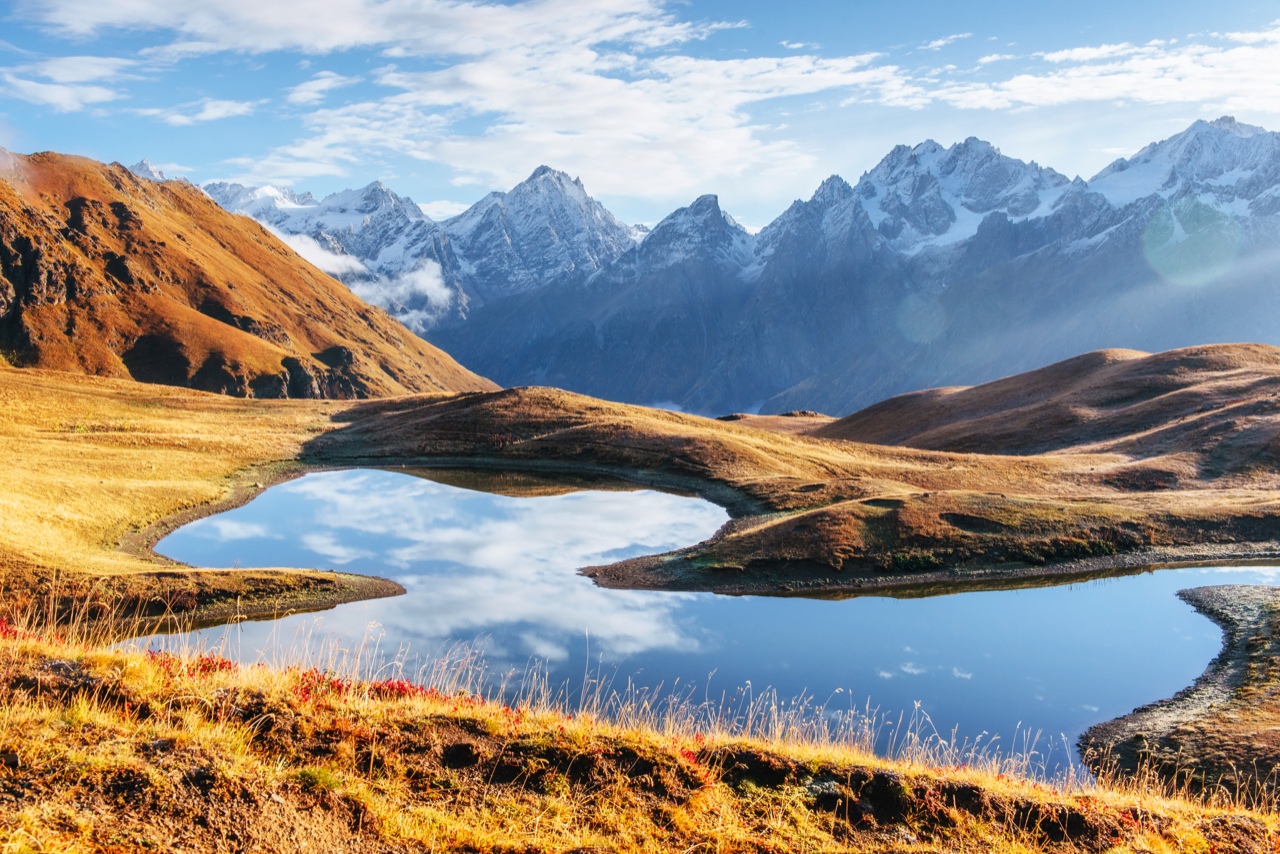
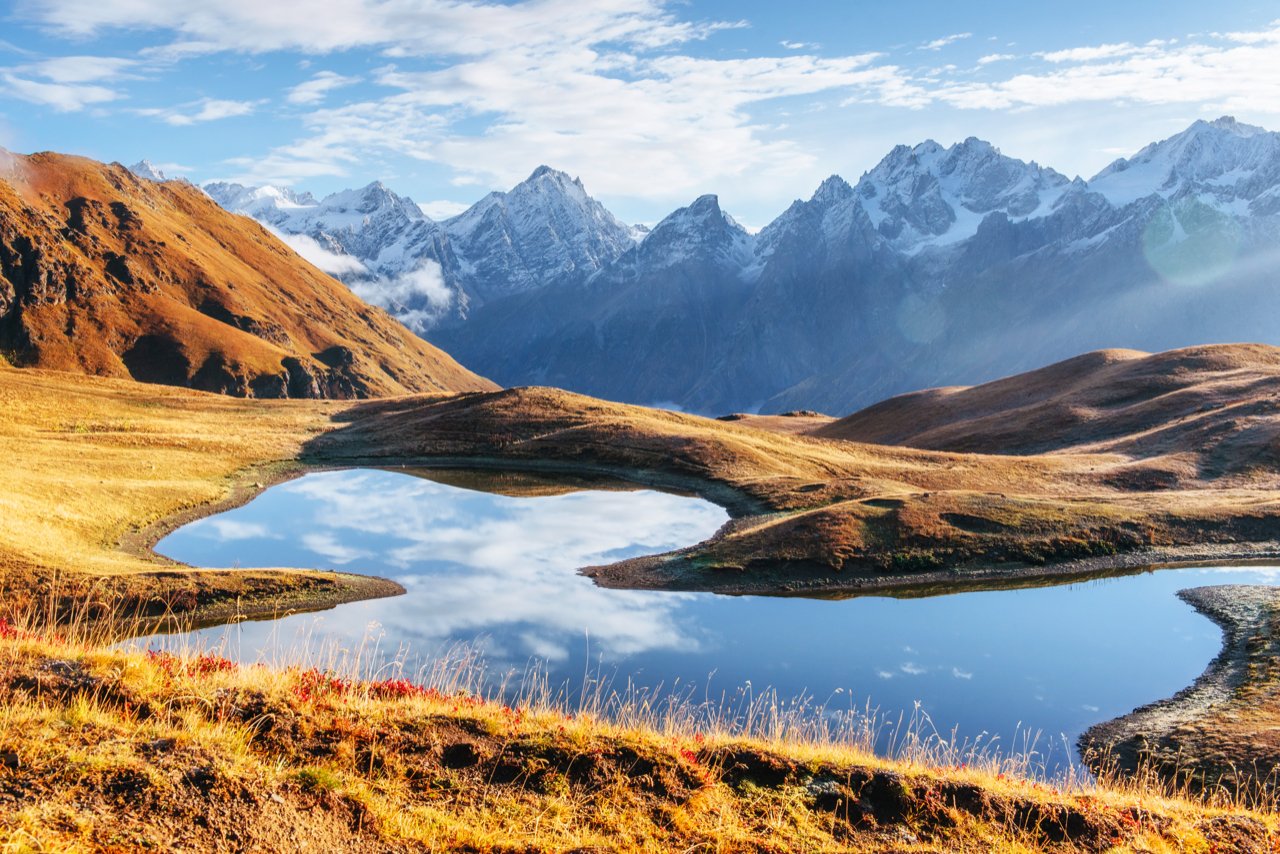
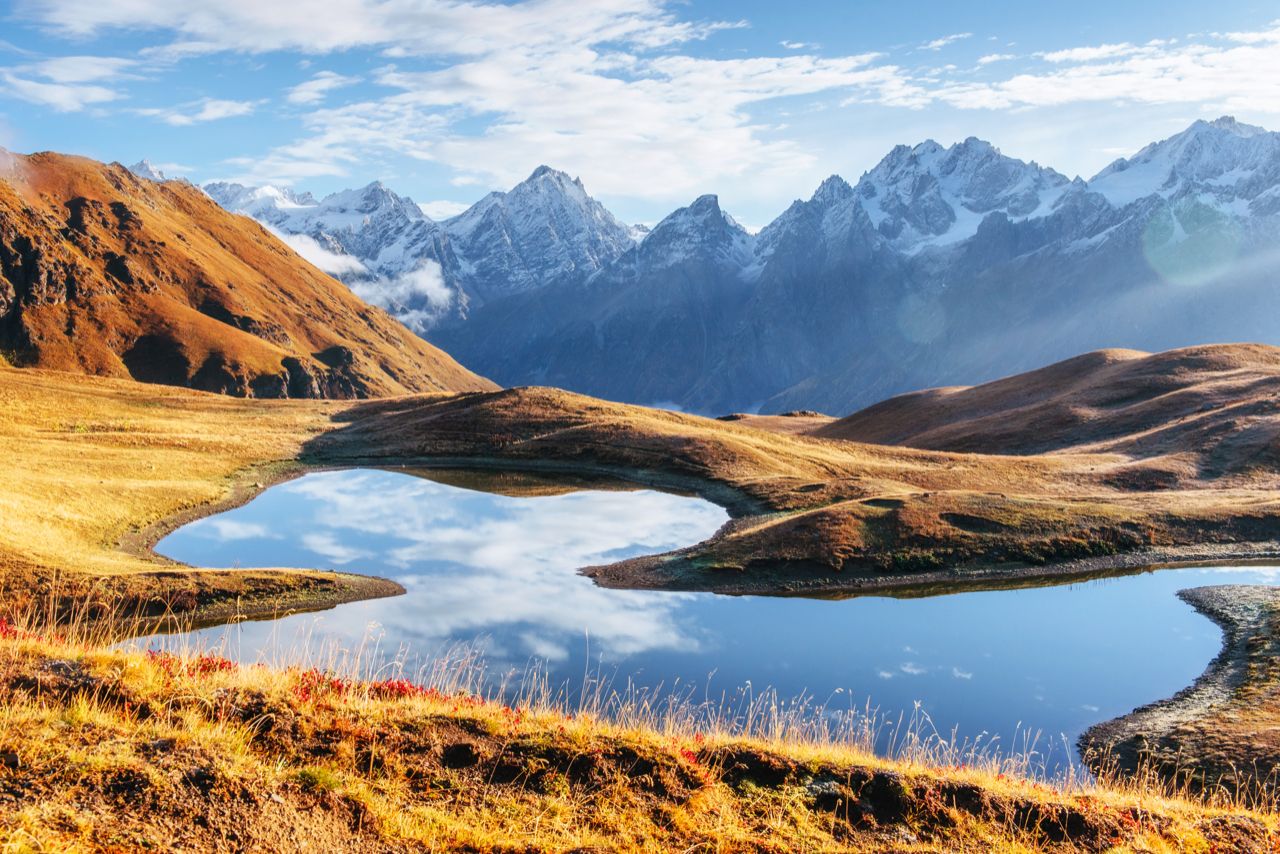
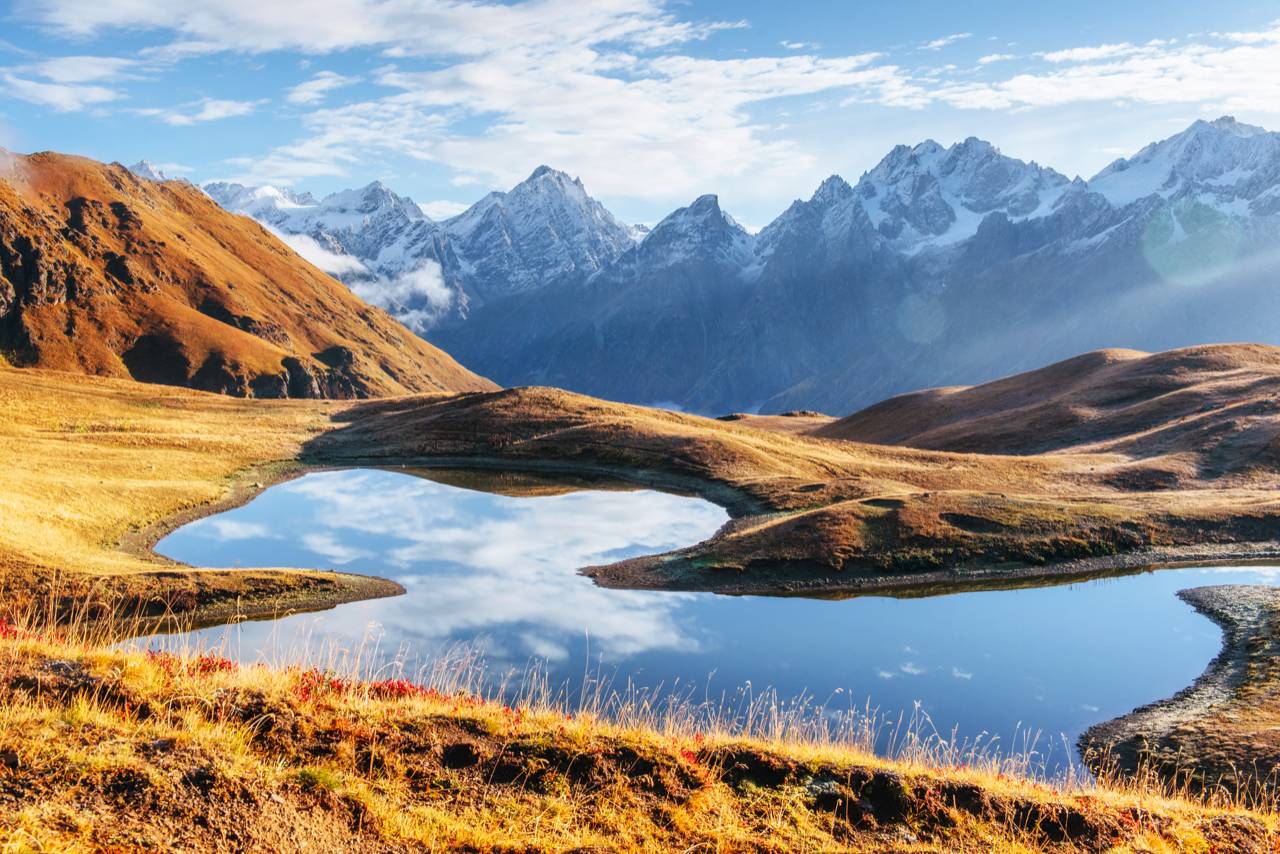
Same 1280 × 854 landscape, sliced into four bands — each band is served from a different JPEG quality setting, compressed in ConvertYard's image compressor.
The practical limit for image quality that is sufficient for display on the web: images compressed to around 75–80% of their original size look close enough to the original that most people can't tell the difference when viewing the two images side by side.
Researchers have been studying how we perceive images for decades. They have established several standards for image quality, and many applications use the Structural Similarity Index (SSIM) as the most important measure. For most photographic images, SSIM increases only slightly above quality 80.
What this means in practice — the 1280 × 854 landscape above, run through ConvertYard's compressor:
- Uncompressed JPEG baseline: 1,697 KB.
- Quality 85: 292 KB — 83% smaller, imperceptibly different from the original.
- Quality 80: 249 KB — 85% smaller, still imperceptible for web viewing.
- Quality 70: 198 KB — 88% smaller, but visible artifacts start to appear in the sky gradient and reflections when viewed at full size.
Quality 80 is not a compromise. In fact, Quality 80 is the "sweet spot" of image compression, where we can get maximum compression while still maintaining 100% visual fidelity when the image is displayed. 75–85 is the industry standard for web image delivery. For images that are displayed on the web, Google's PageSpeed Insights considers images compressed to 85 to be acceptable.
Exceptions include images with text, sharp geometric features, or line art. For such images, which JPEG (even at high quality) can not compress well enough, use PNG or lossless WebP, or compress JPEG images containing text at high quality (90+).
Format choice is the biggest lever
Changing formats instead of using the quality slider saves way more bytes than lowering the quality.
For typical settings to produce images of similar visual quality (i.e., JPEG quality 85, WebP quality 80, AVIF quality 70), the file sizes for this test image come in at 292 KB for JPEG, 204 KB for WebP, and 216 KB for AVIF — which gives WebP a 30% reduction in file size and AVIF a 26% reduction in file size versus the same-quality JPEG.
This is the same 1280 × 854 landscape that we encoded to WebP and AVIF earlier. You can re-encode this image to WebP and AVIF and drag the quality slider to compare with the JPEG-encoded version:
JPEG · 1,697 KB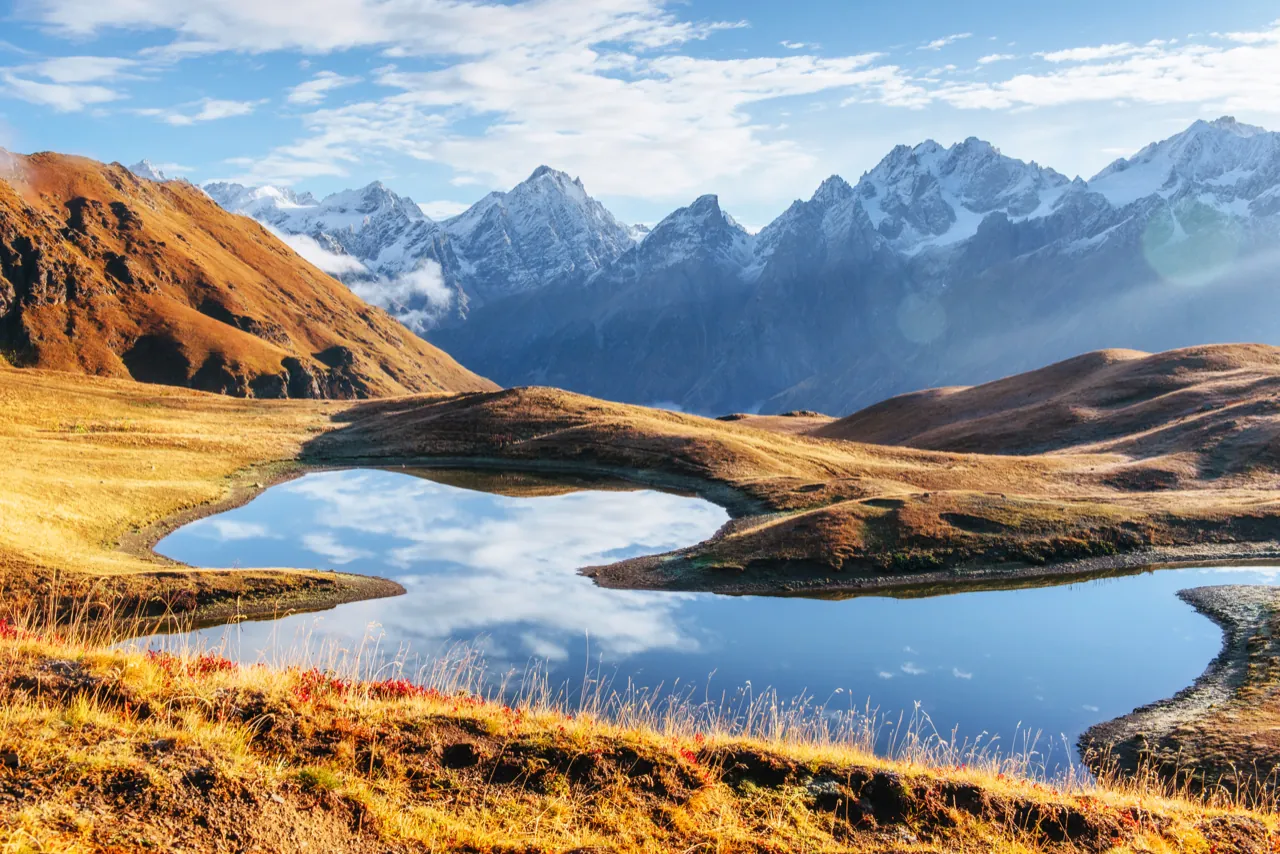 WebP q80 · 204 KB (−88%)
JPEG baseline vs WebP quality 80 (metadata stripped). Same 1280 × 854 pixels — 1,697 KB drops to 204 KB.
JPEG · 1,697 KB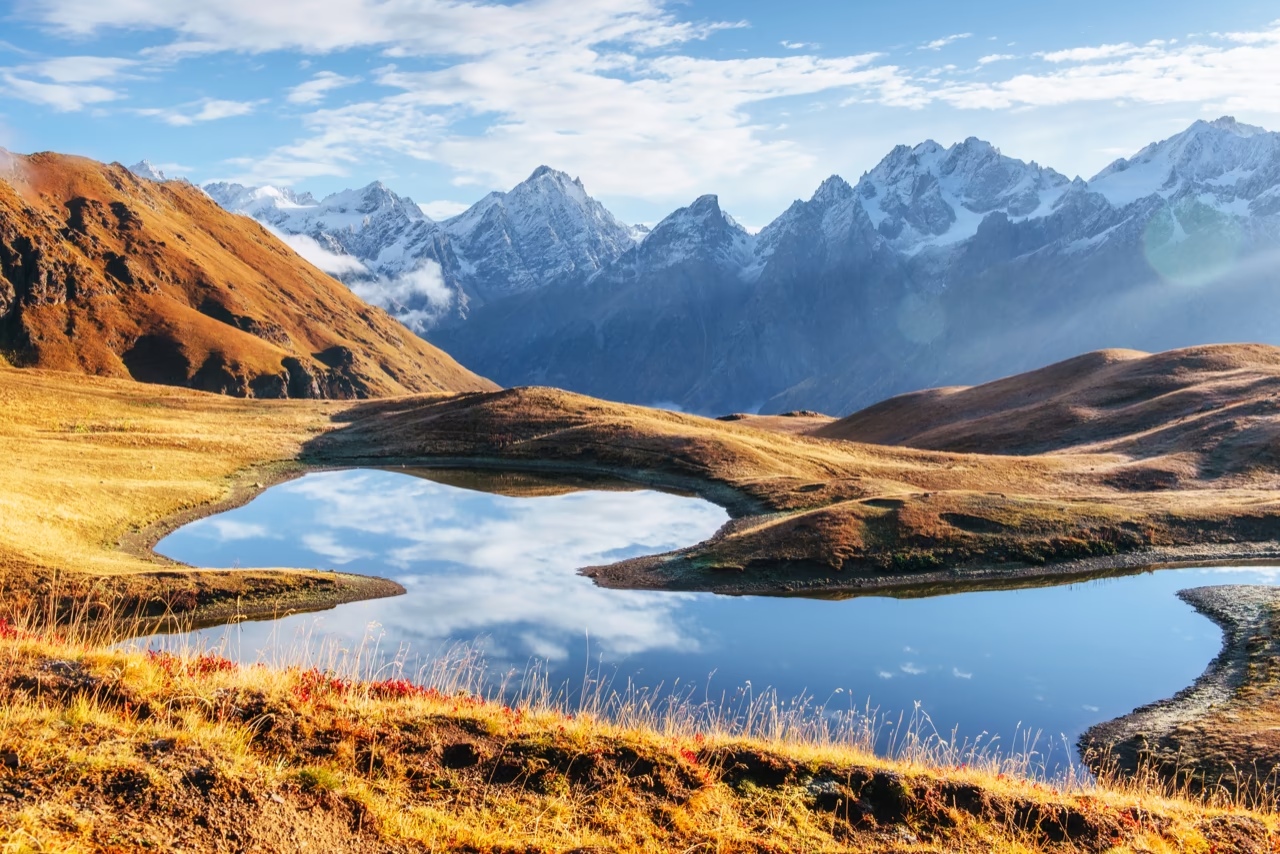 AVIF q70 · 216 KB (−87%)
JPEG baseline vs AVIF quality 70, effort 6 (metadata stripped). Same 1280 × 854 pixels — 1,697 KB drops to 216 KB.
Measured on the test image:
- JPEG (uncompressed reference): 1,697 KB
- WebP quality 80, metadata stripped: 204 KB (−88%)
- AVIF quality 70, effort 6, metadata stripped: 216 KB (−87%)
A caveat with the results above. All of the above numbers were generated by converting the same image through ConvertYard. So, you can see the actual output of WebP vs. AVIF for your own photos, instead of typical case numbers or marketing materials that don't accurately represent real life. WebP q80 comes in below AVIF q70 on this particular test case: a smooth-toned landscape at about 1280px. But for higher-resolution images with a lot of fine detail (ie., foliage, textures, noise), the more computationally expensive coding tools in AVIF result in significantly better compression. At web-body dimensions, though, the two formats typically differ by only a few percent. So, test with your own images, not some generic test case.
None of the images were resized to fit a particular frame size (i.e., every version used the full 1280 × 854 pixels). But if you also resize the image to match the display width of an article (e.g., 800 pixels wide), you could expect a further 30–50% reduction in size for each version.
Switching to WebP for images served on the web will generally have the biggest impact of any change you can make to the image (even before reducing quality, resizing, etc.).
How to compress in batches without uploading files
Most online file compression services upload your files and then compress them on their servers. For images like photos, marketing materials, and other business graphics, this can be a huge risk. You have no idea what infrastructure your images pass through or what retention policies are in place.
Unlike most online compression tools, ConvertYard runs 100% in the browser using WebAssembly. The image compression library is libvips, which runs locally on your device — no file upload or server-side processing is required.
To compress a batch:
- Go to ConvertYard's image compressor.
- Drop all your image files at once (JPG, PNG, WebP).
- Set quality to 80 (default) for most use cases.
- Uncheck the box next to Strip metadata if you wish to keep your images' EXIF data.
- Click Convert and download the ZIP.
For JPG and WebP images, you can also set a maximum file size in kilobytes, and ConvertYard will decrease the quality of the image in steps until the resulting file is below the size limit for your use case (e.g. for a web platform that has a file size limit per image).
Compression checklist by workflow
Web developer optimizing a site:
- Convert all photos to WebP at quality 80
- Convert logos and icons with a background color to WebP lossless, or keep them as PNGs
- Target a total image payload for the page of under 500 KB
- Use
pictureelements (AVIF + WebP + JPEG) to cover as many browsers as possible
E-commerce seller with product photos:
- Convert to AVIF (quality 70) with WebP fallback
- Keep original JPEGs as master files
- Remove metadata (e.g., device info) from output files
Photographer sharing proofs:
- JPEG quality 90–95 for client delivery — wants to be able to edit later and re-export himself
- Deliver as ZIP via ConvertYard batch conversion
Marketing team compressing assets for email:
- JPEG quality 75–80 for photos in email campaigns
- Test at 70% — this will render correctly on a screen and not print out of control
- PNG for graphics with text or flat color
- Set a limit of 200 KB per image to ensure that they are delivered properly within emails
Content creator resizing for social media:
- Each platform recompresses uploads regardless — don't over-compress before uploading
- JPEG quality for online purposes is best set around 85–90 to ensure that once uploaded, the file will survive subsequent recompression by the individual platform without suffering from double-compression artifacts
- Remove GPS metadata before uploading, where necessary