Are your iPhone photos showing up as HEIC files? Here's what HEIC is, why it matters, and how to convert them. This post explains what HEIC is and which data points are stored in HEIC photo files. More importantly, we give you a way to convert HEIC files to JPG (and PNG) without uploading your images to a third-party server.
Convert HEIC to JPG — files never leave your browser →
What is HEIC?
HEIC is Apple's file format for storing images from the iPhone camera. HEIC images use HEIF (High Efficiency Image Format) compression, a standard created by the Moving Picture Experts Group (MPEG), the same organization that created MP3 and MP4.
HEIC images are often much smaller than their equivalent JPG counterparts. A single 12-megapixel image, for example, might be stored as a 2-3MB HEIC file. This compares to a typical 4-6MB JPG file. HEIC's storage efficiency can make a big difference if you store many photos.
This new image format uses advanced HEIF algorithms based on modern video compression techniques, such as the HEVC (H.265) video codec. So while JPEGs are forced to use 30-year-old technology, HEIC images can be highly compressed with exceptional image quality.
To be clear, HEIC is the container format, while HEIF (High Efficiency Image Format) is the compression standard stored inside it — think of it the same way MP4 holds H.264 video. H.264 is video compression, while the MP4 (MPEG-4 Part 14) container is used to hold that video compression.
What data is stored inside a HEIC file
While most guides on HEIC stop at the idea of a new, compressed image format, there is a lot more to it. It's good to know what sort of data is embedded in your photos before sharing them.
GPS coordinates. Because iPhone photos include GPS data when location services are active, HEIC files from your last trip abroad include the exact location where every shot was taken. You can remove these by choosing "Strip metadata" from the main interface when converting your HEIC files to other formats, such as JPG.
Device fingerprint information: camera model, lens focal length, aperture, shutter speed, ISO, iOS version, and more. It's usually harmless, but you might want to strip it from sensitive documents taken with your phone.
Face detection regions. When you take a photo of a person in the Photos app, the app can detect faces and save the bounding box of those faces as XMP metadata in the file. This metadata is not normally transferred when converting between image formats, such as when converting a HEIC file to JPG.
Portrait mode depth maps. A photo taken in Portrait mode contains not only a regular image but also a depth map of the scene, a second image in which each pixel is assigned a distance from the camera. This is what makes it possible to blur the background of a portrait after the photo was taken. The depth map is stored within the HEIC file and can be extracted by image-processing applications that support HEIC.
Live Photo Video Track. HEIC files can also contain video, namely a Live Photo captured by an Apple iPhone. This includes a video track up to 1.5 seconds long and a freeze-frame shot of the Live Photo (still image). Both are saved in a single container file, which typically ranges from 4MB to 8MB for a 12MP still image shot in 4:2:0 color mode. The Video Track is not included when converting an HEIC file to a JPG or PNG image.
Why HEIC files won't open everywhere
You read that right. Many companies don't license the HEIF compression technology and therefore don't include a decoder in their operating systems. They leave it to users to install the HEIC image extension, which lets them view HEIC images. Windows 10 and Windows 11 users must install this free extension from the Microsoft Store to open HEIC images in the Windows Photos app.
After downloading and installing the free 'HEIF Image Extensions' from the Microsoft Store, Windows 10 and Windows 11 can open HEIC image files. Although the HEIF Image Extensions let the built-in Windows 10 Photos app open HEIC files, many older image editors (pre-2018), as well as many versions of GIMP (pre-GIMP 2.10.2), do not support HEIC files.
Android does not support .heic files at the system level. Only some Android devices with the latest versions of Samsung and Pixel mobiles can open HEIC files in their Gallery apps. However, this is not supported at the platform level, and most other image editors and viewers on Android do not support HEIC.
Web Browsers—such as Google Chrome, Mozilla Firefox, and Microsoft Edge—cannot display HEIC images inline. Safari, the default Web Browser on Apple Macs and iOS devices, can view HEIC images thanks to Apple's HEIC decoder, but this is specific to Apple products and therefore not suitable for websites that require cross-browser compatibility.
If you are sharing photos (including documents) by email with people outside your Apple ecosystem, the safest practice is to convert all photos to JPG files before sending. The email client will display JPG images attached to an email and show a thumbnail for each. HEIC images, on the other hand, appear as email attachments, and recipients must download them before opening. If the recipient does not have a codec installed to open HEIC images, the file may fail to open in email clients.
The rule here is simple. If you're going to share photos, whether they have been embedded in documents or not, outside of the Apple-based ecosystem, then convert to JPG before upload.
How to convert HEIC to JPG without uploading your photos?
Send your photos off to some online converter – perhaps even without understanding the full scope of the data you send (photos could include GPS coordinates of where the shots were taken and even data about the faces detected within the images). If you do end up using an online service to convert your HEIC files, familiarize yourself with that service's policies to ensure it doesn't keep your images after conversion.
Then again, there's browser-based conversion. The browser pulls the conversion code from the server, but your photos stay on your device the whole time and are wiped from your computer's RAM once processing is done — nothing is uploaded. ConvertYard's HEIC-to-JPG converter is a great example of this type of utility.
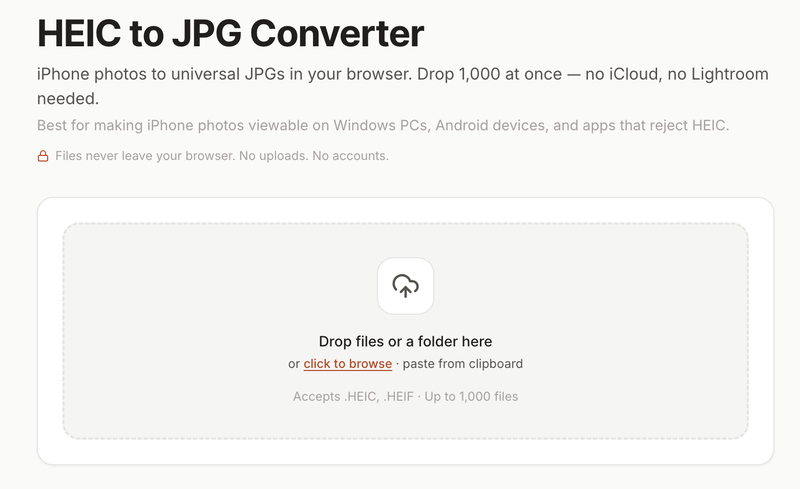
- Go to ConvertYard's HEIC to JPG converter.
- Upload your HEIC files. You can drag and drop them into the big rectangle or select them on your local machine.
- Quality: 90 (there is also an option for max quality, but it will roughly double the file size, and it's not needed most of the time).
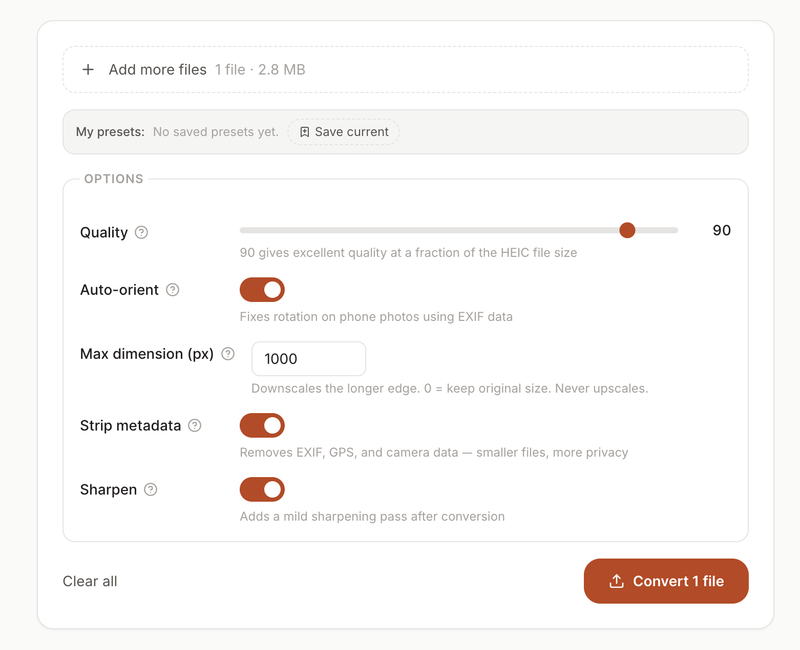
- Check Auto-orient to ensure portrait-shooting iPhone photos will come in upright (as opposed to being inverted).
- Remove EXIF/IPTC/XMP metadata including GPS data (if needed).
- Click Convert and download.
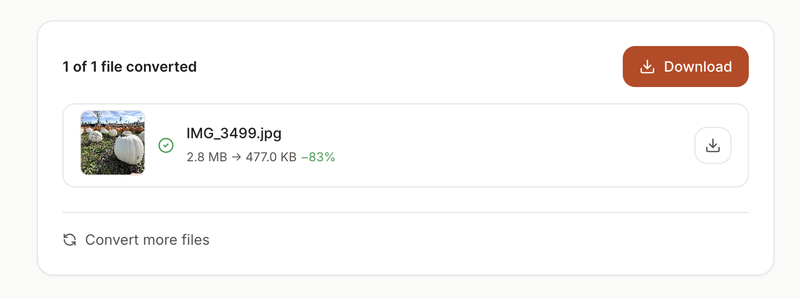
Before and after: HEIC vs converted JPG
Same photo, same visual quality — but the JPG opens everywhere while the HEIC does not.
 HEIC — 2.8 MB
 JPG — 4.5 MB
Same photo, same 1600 × 1200 preview — the HEIC won't open on Windows and most Android phones, the JPG does. Drag the slider to compare.
When working with sensitive images and using lossless editing, we recommend converting HEIC to PNG to keep every pixel intact. PNGs are generally much larger than their HEIC counterparts but have no quality loss, which makes them perfect for editing.
Batch converting 100+ iPhone photos at once
For larger jobs, ConvertYard's batch converter handles whole photo libraries at once, which is useful when migrating from iPhone to Android or storing photos of family members and relatives for clients and/or your own website.
All files are converted one after another. There are no restrictions on the number of files you can convert in one session. The output is saved as a downloadable zip file.
Practical notes for large batches:
- Processing time: Up to 500 iPhone photos (average size, 10-12 MP) can be processed within 10-20 minutes on current laptops. Keep the browser tab open and in the foreground (some browsers throttle background processing).
- Memory: HEIC files with high-resolution photos can use a lot of memory. Large batches of iPhone 15 Pro shots (48MP) can easily consume 4 GB or more of RAM during conversion. This is why large batches are best split into smaller groups, such as 200-500 images.
- Convert Portrait Mode photos: HEIC files taken in Portrait mode contain not only the typical image data but also a depth map of the scene. When converting these images to JPG, ConvertYard strips the depth map so it saves a simple flat image.
To keep managing your large photo library on your computer, go to your iPhone settings, select Camera, and change your image capture format to Most Compatible (i.e., JPG images instead of HEIC). Images already on your phone will be in the HEIC format, but new images will be captured as JPG images.